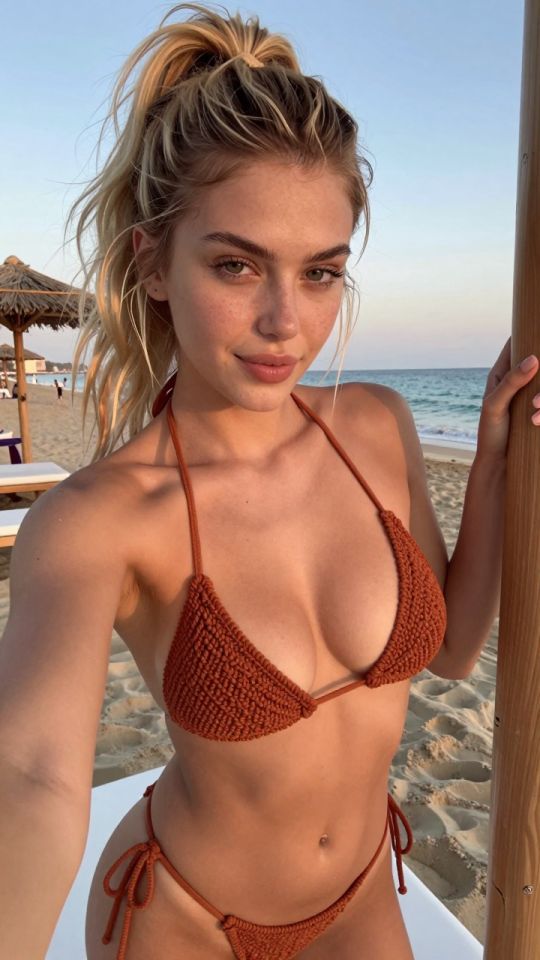
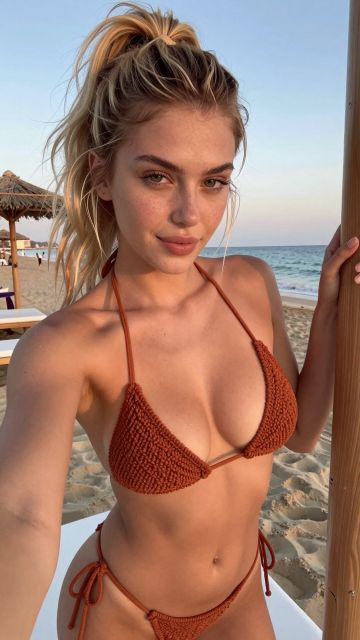
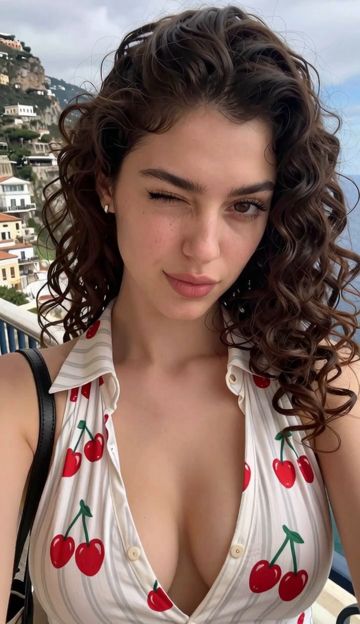
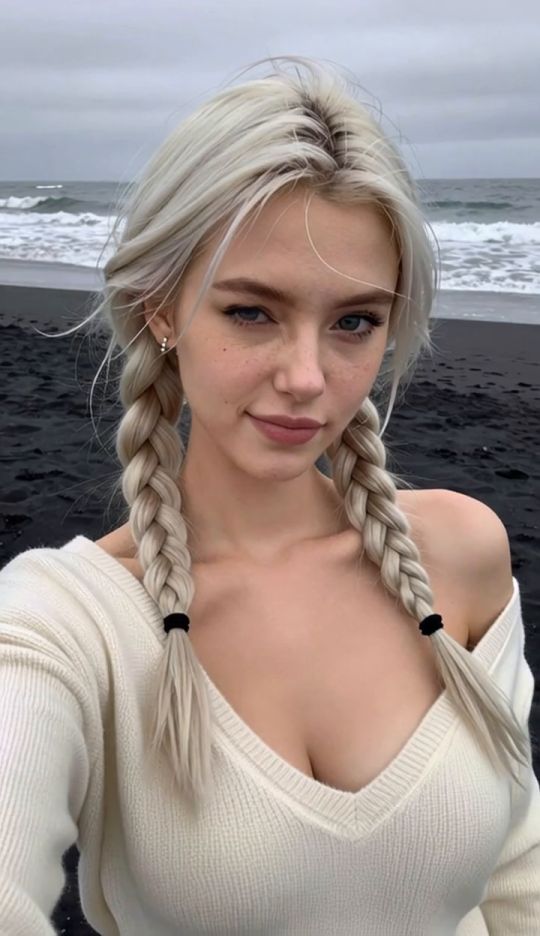
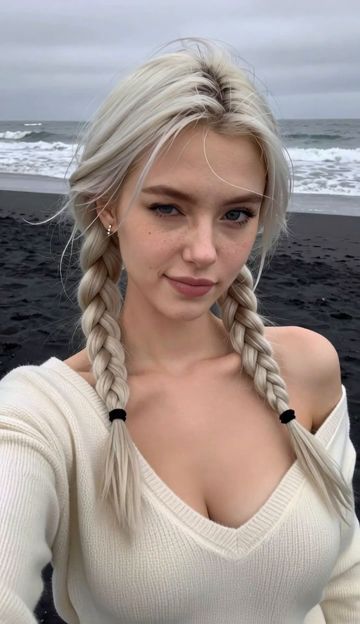
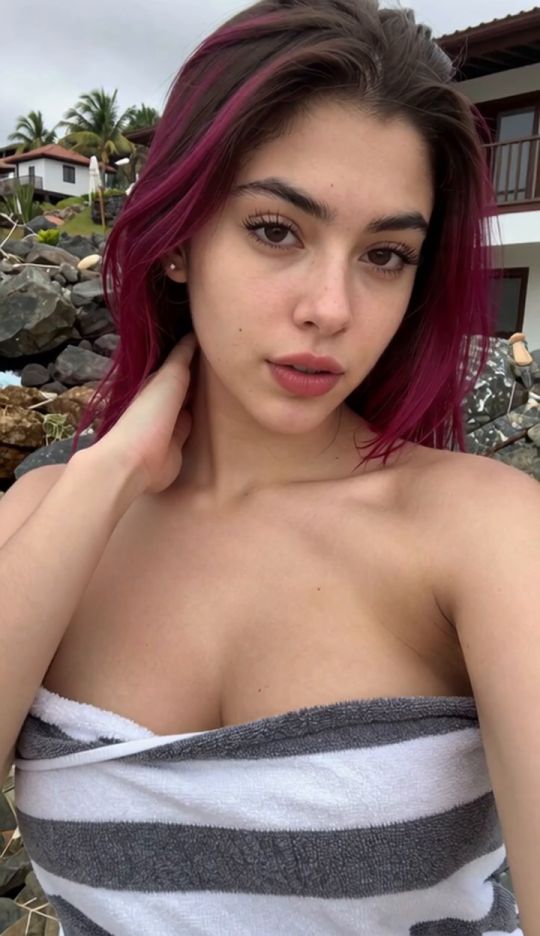
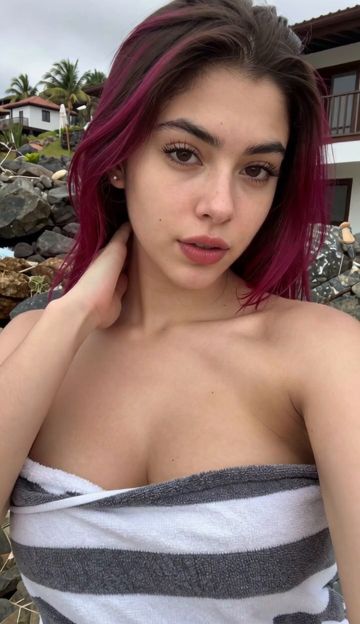
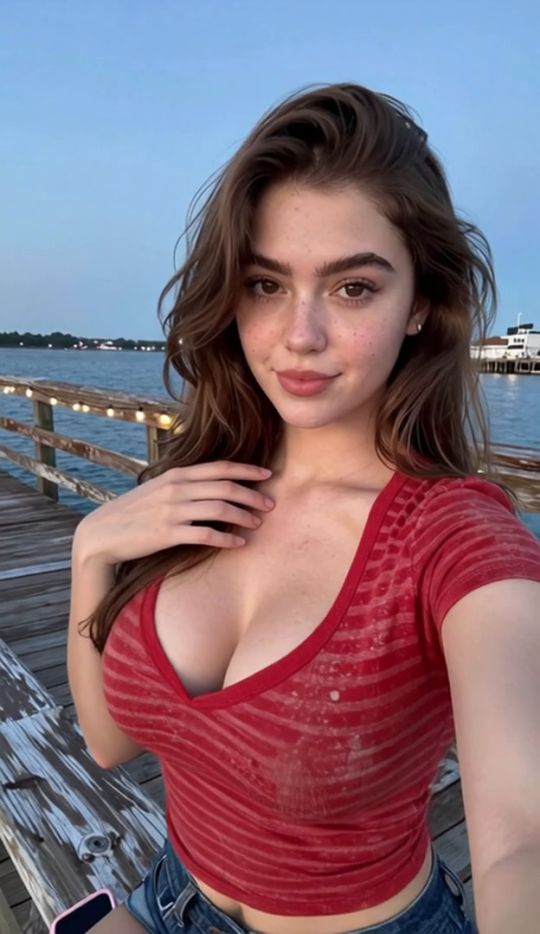
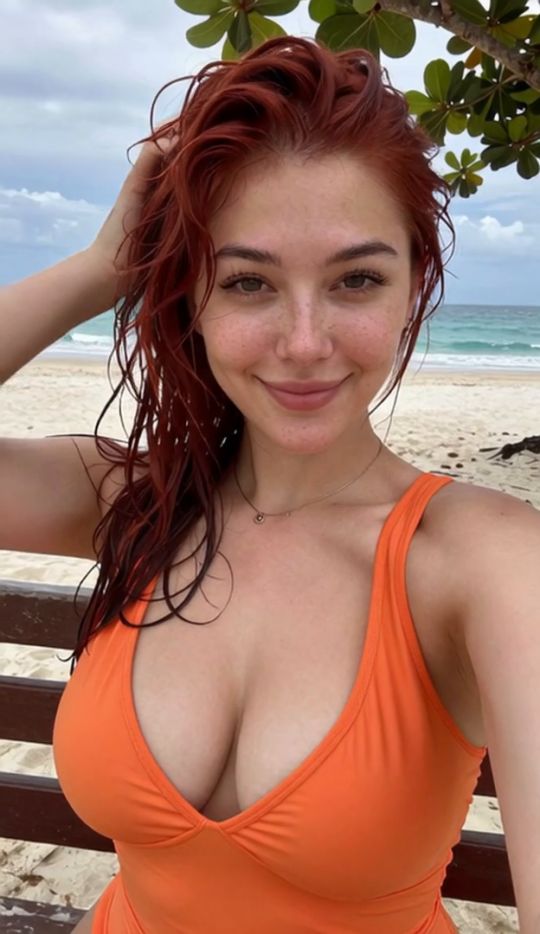
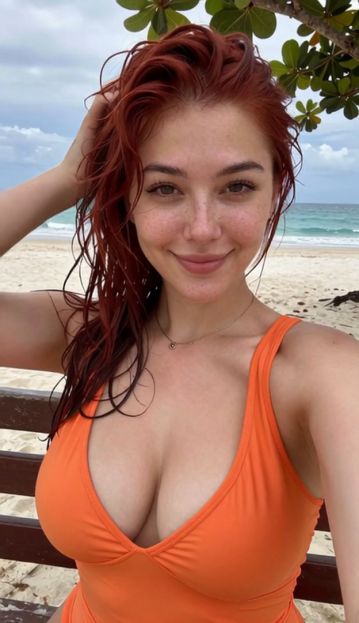
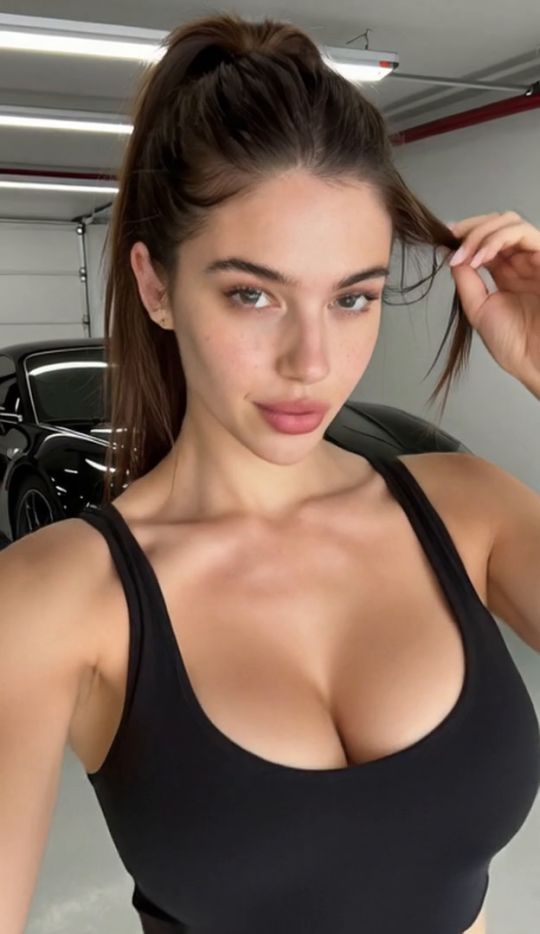
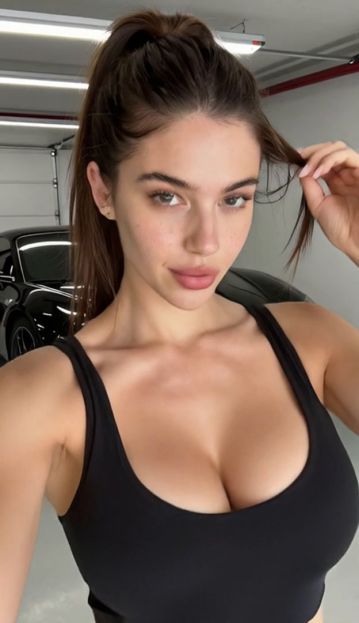
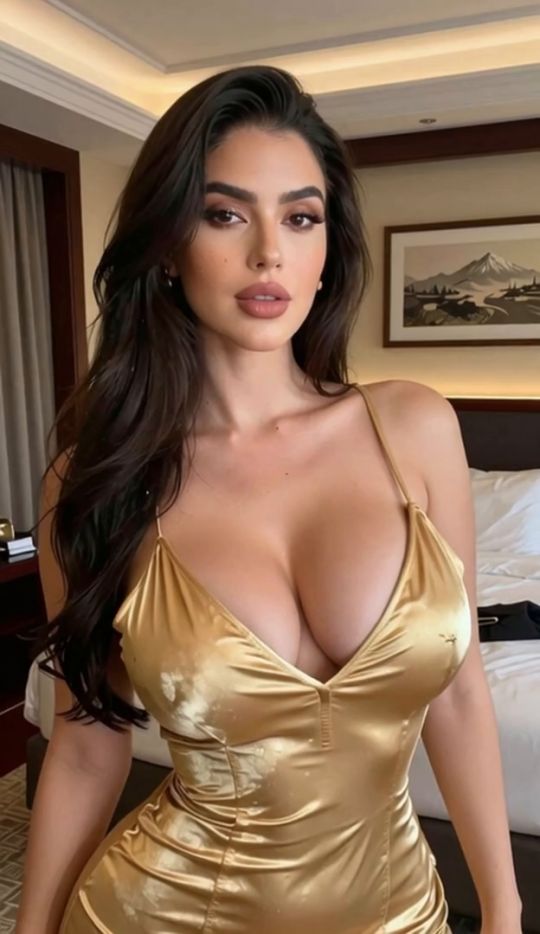
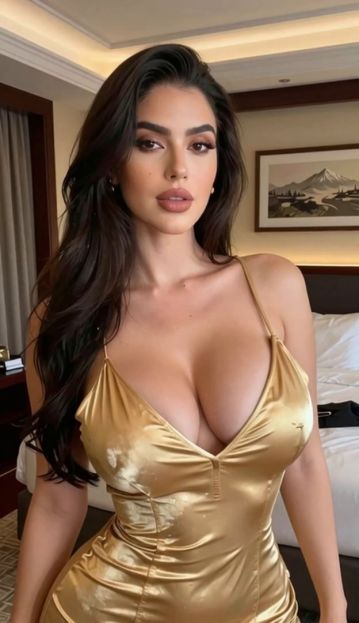
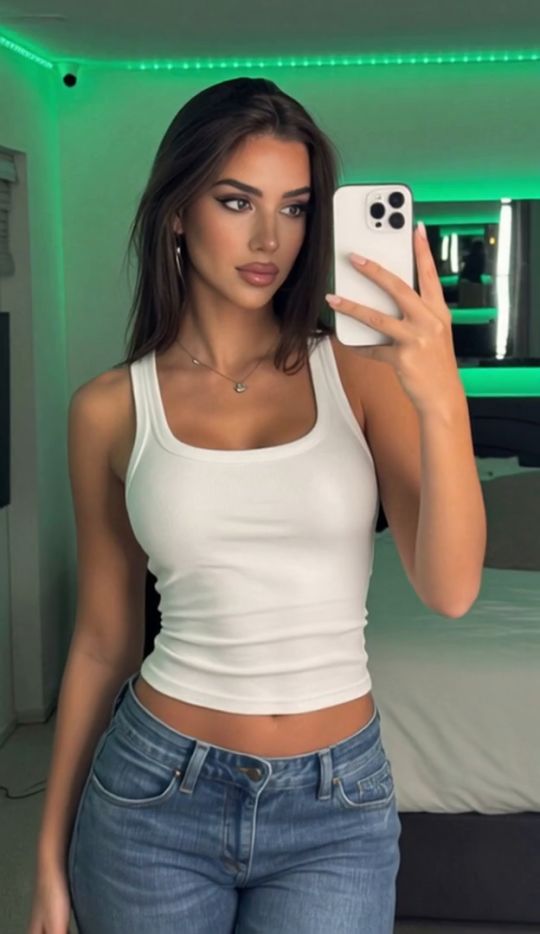
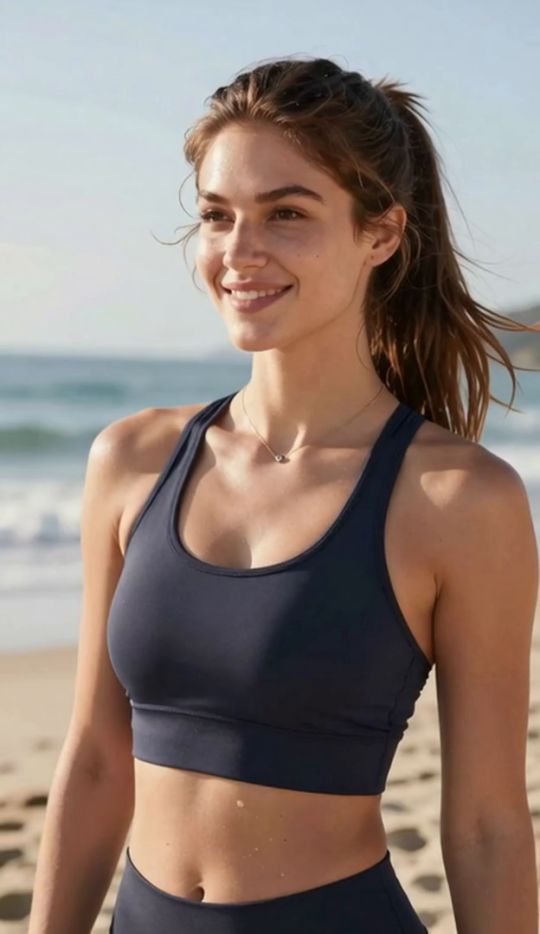
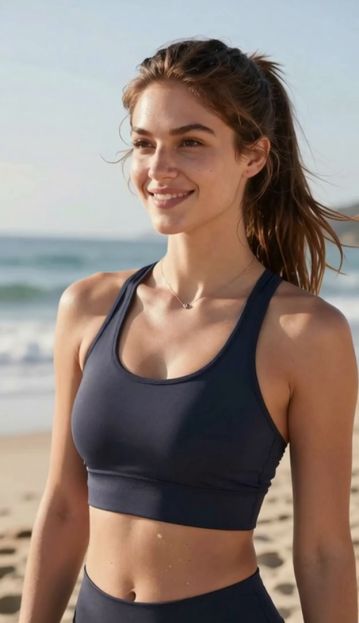
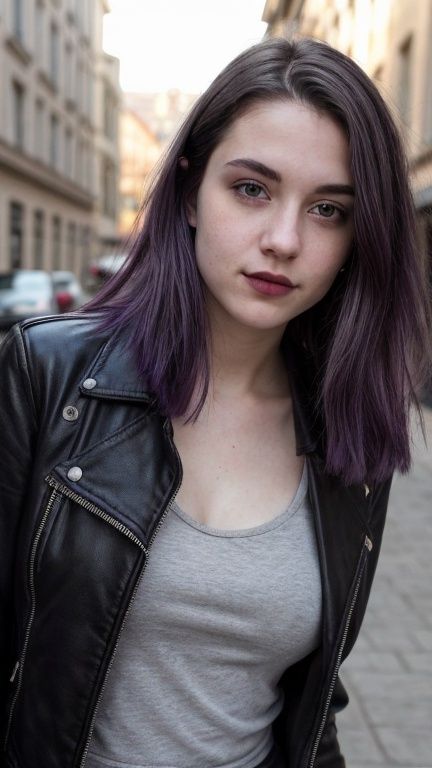
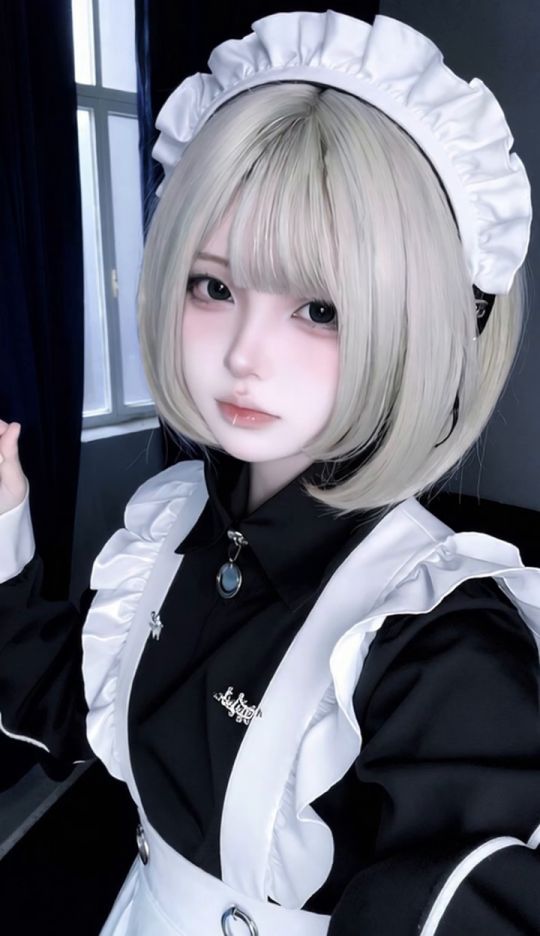
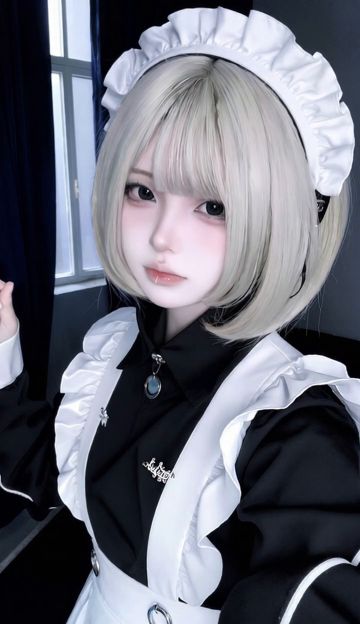
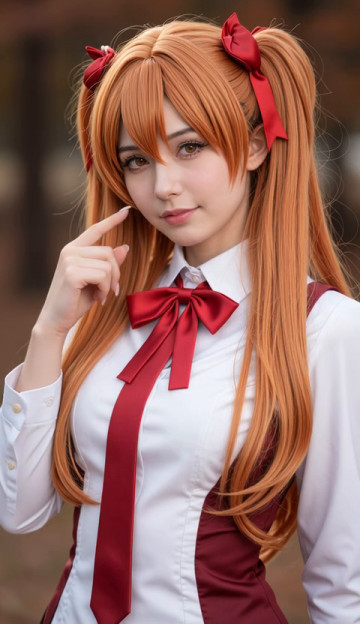
Turn an existing photo into a bikini-style AI image with SpicyLab's AI Bikini Generator.
Upload a photo, use the Bikini template, and generate a new interpretation of your image. You don't need to edit the original photo manually or build the entire scene from a text prompt.
The best place to start is with a photo that already has the framing and subject appearance you want. From there, you can compare generated results and decide which version works best.
You only need a source image and the Bikini template to get started.
1
Choose the Bikini template
Open the Bikini template in the generator. This sets the intended visual direction without requiring you to describe the entire transformation yourself.
2
Upload your photo
Choose a photo where the main subject is visible and the framing is suitable for the result you want.
Before uploading, check whether the image is blurry, heavily cropped, or partly obstructed. These details can make the source harder for the AI to interpret.
3
Generate your image
Start the generation and wait for the result. Review the whole image rather than focusing only on the bikini styling.
Pay attention to whether the subject, body proportions, lighting, and background look consistent.
Choosing the Right Photo for AI Bikini Generation
Not every photo makes an equally useful starting point. You don't need professional photography, but a few checks can help you avoid using an image that is difficult to interpret.
Check how much of the subject is visible
If the subject is cut off at the edge of the photo, the AI may need to interpret details that aren't visible in the original.
Choose a photo with enough space around the subject for the composition you want. If you're deciding between a tightly cropped image and a more complete photo, the less restrictive framing is often worth trying first.
Look at the pose
A clearly defined pose makes it easier to evaluate whether the generated result maintains a coherent body position.
Check whether arms, legs, and other visible features overlap in ways that make their boundaries difficult to distinguish.
Check lighting and image sharpness
Look for heavy shadows, motion blur, or compression that hides important details.
A slightly less polished photo with clear details may be a better starting point than a heavily filtered image with softened or distorted features.
Consider the background
A busy background isn't automatically a problem. However, objects crossing the subject or strong visual clutter can make it harder to judge whether the generated image has preserved a coherent composition.
Quick photo checklist
Is the main subject easy to identify?
Is the intended framing visible?
Can you distinguish the subject from nearby objects?
Are important details reasonably sharp?
Do you have permission to use the image?
If your photo passes these checks, it's a reasonable starting point for a first generation.
What to Check in Your Generated Bikini Image
A result can look attractive at first glance and still contain details worth reviewing.
Before choosing a final image, check these four areas.
Subject consistency
Compare the generated image with your source photo. Look for unexpected changes to facial features, hairstyle, or other identifying visual details.
AI generation may reinterpret parts of the image, so don't assume that every feature will remain identical.
Clothing and styling
Look at whether the generated bikini styling appears visually consistent across the image.
Check for uneven edges, unexpected changes in texture, or details that appear to merge with the background.
Body proportions and pose
Inspect the relationship between the subject's visible features. Watch for unnatural-looking proportions, unclear outlines, or visual details that don't align with the pose.
Lighting and background
Check whether shadows and highlights appear to belong to the same scene.
Also look for background objects that have changed shape or become visually distorted.
You don't need to reject an image because of every minor difference. The goal is to choose a result that looks coherent as a whole.
Common AI Bikini Image Problems and What to Try
If the first result isn't what you expected, identify the problem before changing your source photo.
Problem
What to check
What to try
The subject looks noticeably different
Face, hairstyle, and source-image clarity
Try a clearer source with fewer filters or obstructions
Clothing details look inconsistent
Edges, textures, and overlapping objects
Compare another generation before replacing the source
The pose looks distorted
Cropping, perspective, and visible body outlines
Try a photo with clearer positioning and more complete framing
The background looks unnatural
Clutter, shadows, and objects near the subject
Try a source with fewer overlapping background elements
Several results have the same problem
Whether the issue is present in the source image
Test a different source photo rather than repeatedly using the same difficult input
These are troubleshooting suggestions, not guaranteed fixes. AI-generated results can vary even when you use the same image.
How to Compare Different AI Bikini Variations
Generating another version can be useful, but only if you know what you're comparing.
Instead of choosing whichever image looks most impressive at first glance, review each variation against the same criteria:
Subject:
Which version best maintains the appearance you want?
Styling:
Which has more consistent bikini details and textures?
Composition:
Which has the most balanced framing and natural-looking proportions?
Image quality:
Which has fewer distracting artifacts in the background or around the subject?
If two results are similar, choose the one with fewer noticeable inconsistencies rather than the one with the most dramatic styling.
If several generations repeat the same problem, changing the source image may be more useful than continuing to generate from it.
What Can You Create Next With SpicyLab?
The Bikini template is designed for a specific photo-based transformation. Other tools may be more suitable depending on what you want to do next.
You can also return to
Spicylab AI to browse the available generators and templates.
Use Your Images Responsibly
Only upload images that you have the right to use. If an image contains an identifiable person, make sure you have their consent for the intended transformation.
Never use images of minors for sexualized or adult AI content. Respect other people's privacy, and don't use generated images to misrepresent someone without their consent.
Ready to Create Your AI Bikini Image?
Start with a photo you have permission to use. Choose the Bikini template, generate your image, and review the result using the checks above.
If the first result isn't suitable, identify the main issue before deciding whether to try another variation or a different source photo.
Frequently Asked Questions
Yes. The SpicyLab Bikini template uses an uploaded image as the starting point for generating a bikini-style variation.
Not necessarily. The important consideration is whether the framing provides enough visual information for the result you want. A tightly cropped photo may be less suitable if important parts of the composition are missing.
Generative AI interprets the source image rather than performing a perfectly controlled manual edit. Features, styling, proportions, and background details may change between the original and generated result.
Check whether the source image has unclear positioning, heavy cropping, blur, or overlapping objects. You can compare another generation or try a clearer source photo if the same issue continues.
Yes. Generating multiple variations can help you compare styling, composition, and overall image consistency.
The Bikini template provides the main generation direction, so you don't need to construct the entire concept through an open-ended text prompt.
You can use a suitable generated image as the starting point for SpicyLab's separate image-to-video workflow.
No. The template workflow is built around selecting a source image, generating a result, and reviewing the output rather than manually editing the photo.
Explore related templates
Continue with another dedicated SpicyLab template landing: